Hi , I hope most of you have started your ☃️winter break and get a chance to enjoy your family, friends and a well deserved break, to 🦩rest and recharge. When you 🖊️sign-in, tell me how you plan to spend your break. 😊 I am creating resources and updating 💜alicekeeler.com, check it out and let me know your thoughts. 🎟 The passcode is winteriscoming PLEASE SIGN IN! I respond ☀️ What Is Up This Week-
🖊️SIGN IN with the passcode winteriscoming
-
📅 Be added to the events calendar for the week. (do this every week!)
- 🔺 Premium Add-on: Copy of my Folder PRO by Alice Keeler
Copy of my Folder PRO Tutorial 4.💧 🆕Drip Workshop-One Lesson Per Week (online course) Go Slow for the Holidays 5..☑️Check alicekeelermembership.com with passcode winteriscoming for resources & events. 6.⏺️ Webinar Recording with Alice: Creating a Google Form Branching Interactive Experience 7.⏺️ Webinar Recording with Alice: Let's Talk Feedback! 8.✅ Check out: Folder of BINGO Boards 🌟Premium Event This Week✴️ One on One with Alice Keeler
 🎨Make a QR Code in Google Chrome 🎨Make a QR Code in Google Chrome
📗You can still make a QR code in Google Chrome but it is definitely not as easy.
🐛🐛🐛Moved to the 3 dots menu
➡️Save and Share 👉👉👉Create QR code

 🆒Getting Started with 👾Badges in Google Sheets 🆒Getting Started with 👾Badges in Google Sheets
👀Looking for a way to award students badges to visualize accomplishing goals or demonstrating skills? 🟩Google Sheets offers a straightforward solution to create and manage digital badges. 🟣By combining the spreadsheet’s data management capabilities with its conditional formatting options, you can easily design and display badges that represent individual achievements.
How to Create Badges in Google Sheets Tutorial
Using 📛Badges in the ClassroomIf you have ever played a digital game that awarded badges there are 3 reasons to earn a badge. 💯Demonstrate MasteryStudent demonstrates they have mastered a certain skill or standard. What is great about using badges for this is that badges can be used for recognizing soft skills that are not necessarily named standards, yet have value for students. 👽For FunAdding fun to the classroom is motivating. Offer some fun challenges that have little to no connection to the standards, yet help build culture and engagement. 🧬Extending ChallengesOvercoming a challenge is engaging. Badges allow you to offer students optional challenges that can encourage them to go above and beyond.
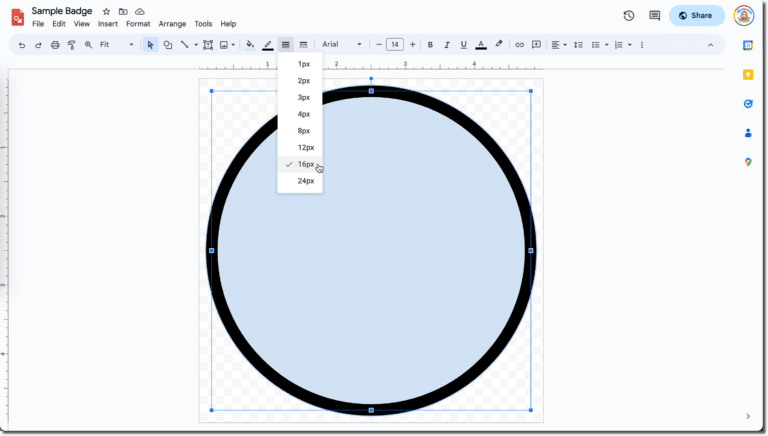
🎭Create Badges in Google Sheets✅Start by making a list of challenges in a Google Sheets spreadsheet. Remember to offer🎲 choice, incorporate different options for student interests.🐬 🌟🌟While you can insert drawings using the Insert menu, I recommend you create your badge in Google Drawings. - 🔶 Use the File menu to resize the canvas to 5 inches by 5 inches.
- ⭐Use the circle/ellipse tool to draw a circle. Tip: Hold down the shift key to ensure you draw a perfect circle.
- 🔷Ensure the circle fills almost the entire canvas.
- 💠Use the line weight tool to make a thick border on the circle.
- 💎Add design elements.
- ❇️Use the File menu to select “Share” and “Publish to the Web.”
- ✨Copy the published link.
✨Add the Google Drawing🆗While you can add images to Google Sheets using the Insert menu, I would recommend a formula instead. You want the badge image to only show up if the student has accomplished the requirements for the badge. 😊You will need a way to indicate the student has met the requirements. ☑️I like to use checkboxes. Add a checkbox from the Insert menu. Assume this is in column A. 👾In the cell you wish the badge to appear add the formula =IF(A2=FALSE,””,IMAGE(“URL”)) 🐙A2 assumes the checkbox is in row 2 and column A. Adjust the formula accordingly.
Where the formula says “URL” instead paste the link to the published drawing. Ensure the URL is enclosed within “single quotes.” 🔋Basic Getting Started👍👍Hopefully this gets you started with an easy way to practice creating badges and sharing them. You can get much more complex by using systems in spreadsheets, but this is a place to start! Happy practicing creating badges in Google Sheets
Recent Blog Posts
| 