Hello , the school year is winding down. How did this year go (or going)? The passcode is still: 2024 Sign In alicekeelermembership.com Set Up FiltersIs your inbox a hot mess? Now is a good time of year to set up filters to have more organization next school year! How to Set Up Filters Tip: find an email in your inbox that you want to organize or automate what happens when you get emails like it. Check the checckbox next to the email. 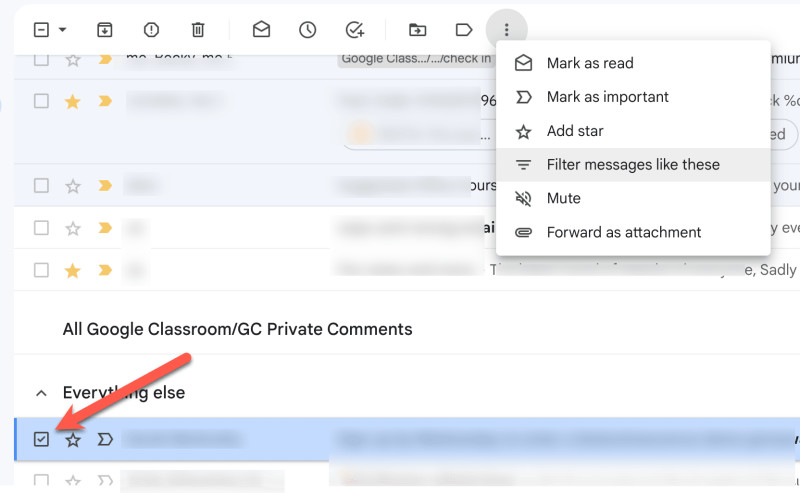
Use the 3 dots menu in the toolbar to choose "Filter messages like these." This will give you options for how you want to filter emails. 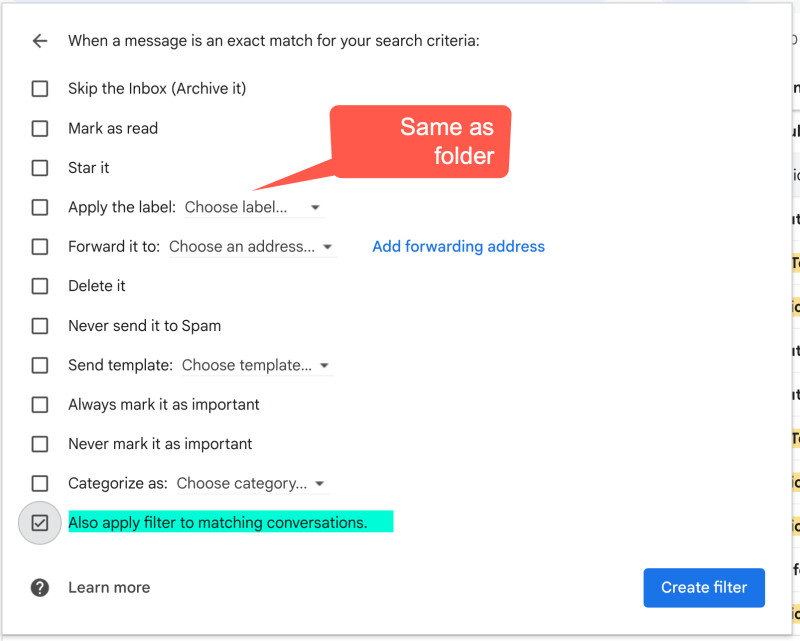
Note that LABELS is another way of saying "Folder." - Emails from your admin, have them labeled "Admin" or "Important"
- Emails from (for example) the librarian MIGHT be something you can check before or after school. Label them "Library" and check the box for "Skip the inbox."
- This might be for only SOME types of message for the library. Be sure to couple your filter with a keyword in the subject line that is used consistently such as "Overdue books list"
- Emails from companies with a newsletter, label them "newsletter" and check the box to "Skip the Inbox."
The more filters and labels you set up now the cleaner your inbox will be for next year! 
Clean Up Your Google DriveThe end of the year is a good time to clean up your Google Drive - Create a 2023-2024 folder in Google Drive
- Drag EVERYTHING from this school year (that you don't already have organized) into this folder.
- Delete student work.
- Once your grades are submitted you can delete student work in your Google Drive.
- Remember, pre-digital work we would clean out our filing cabinets by throwing away all of the student work.
Clean Up Google FormsREUSE your Google Forms next year instead of making a bigger mess of your Google Drive and copying your forms. Start by going to Google Drive
In the search box at the top click on the filter icon on the right side of the search box, this creates a drop down menu.
Choose Type: Forms
Set the Date Modified:
After the start of this school year. 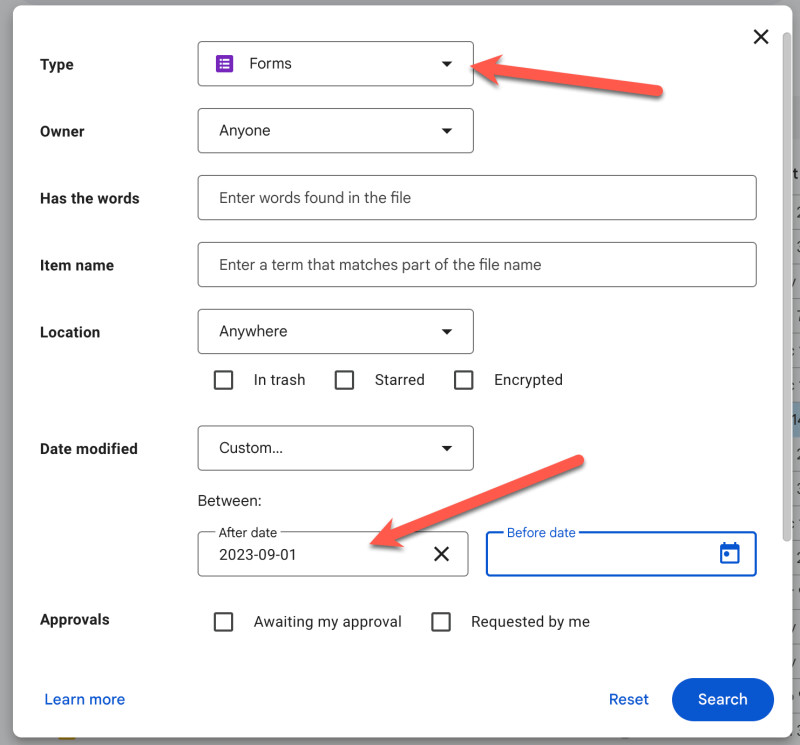
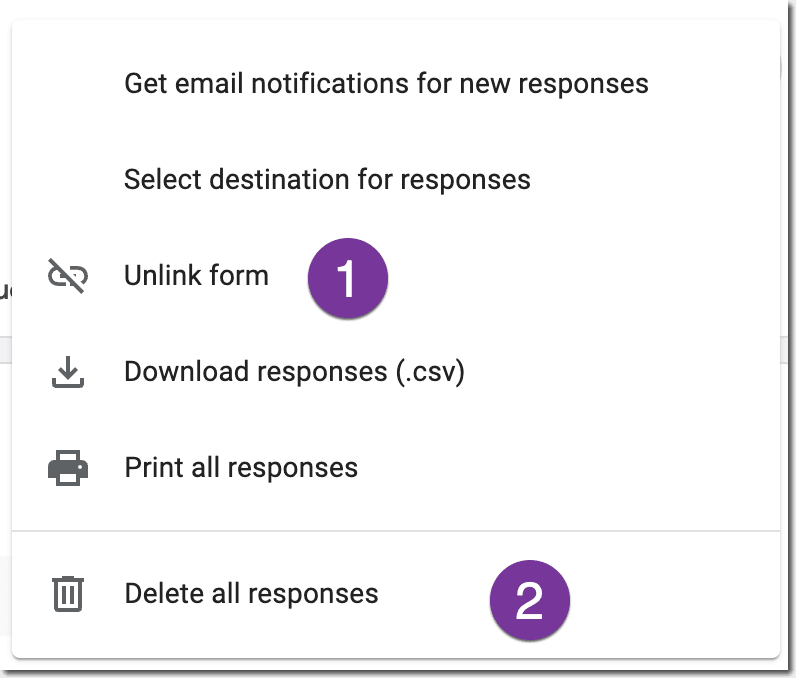
For each of these Forms you will want to delete the responses and set a new spreadsheet. In the Google Form go to "Responses" and use the 3 dots next to "View in Sheets."
Choose "Unlink form" which actually unlinks the spreadsheet but does not delete the spreadsheet or data.
Choose "Delete all responses."
Then you can link back to the same spreadsheet or a new sheet. 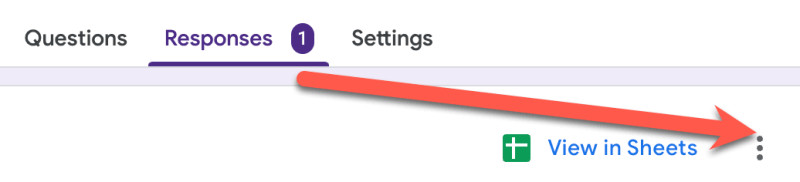
Clean Up Your Form FasterI have an Add-on to help you with this since you will need to do it for all of your Forms from the year that you might reuse next year. Currently, it does not have premium features but may in the future. Install Fresh Form Tab 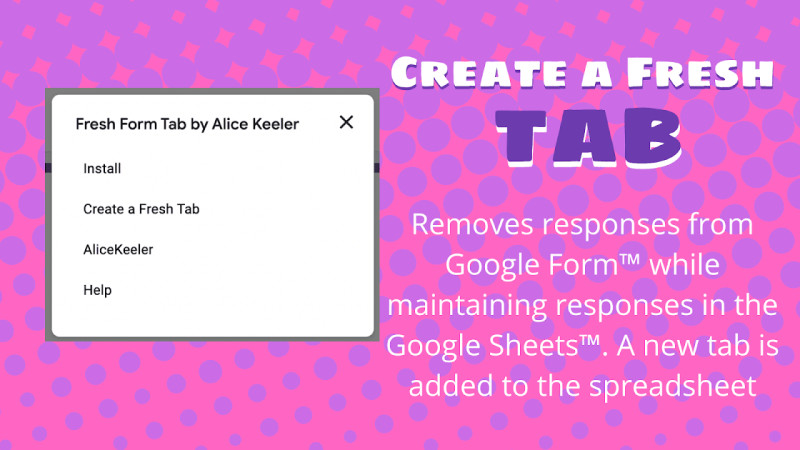
Go to the puzzle piece for each Google Form and select "Fresh Form Tab by Alice Keeler" and then choose "Create a Fresh Tab." What this does is deletes your responses from the Google Form, unconnects the spreadsheet, and automatically reconnects to the same spreadsheet but in another tab. Making it fast to make your Forms ready for next year! Make a Snowman TemplateApologies for those who are doing the Gamified Warm-Ups Go Slow Workshop. The Make a Snowman game was not shared properly and you may have gotten an error when you tried to make a copy. I have fixed the sharing permissions. Here is the template: alicekeeler.com/buildasnowman
Premium Add-onsAs a premium member you have access to many official and unofficial Add-ons that I have created. Try Missing From to see who did NOT fill out your Google Form. See my blog post for step by step directions. 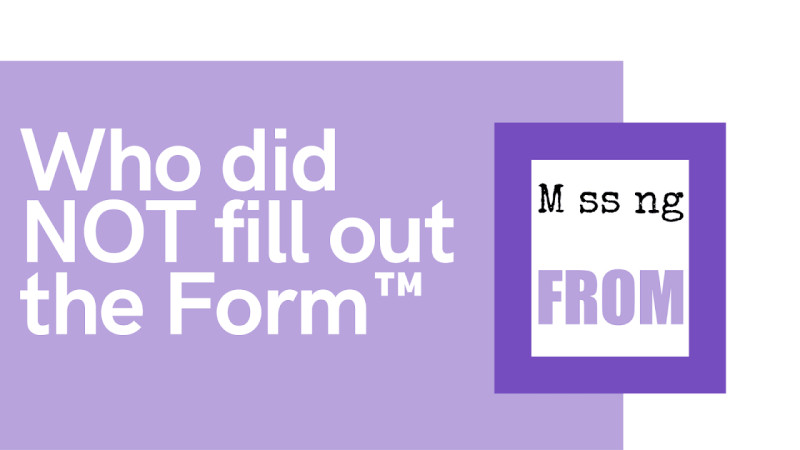
Want help with this? Please check in and let me know!
| 