Hi , It's almost 🎃Halloween! Try out my Halloween Pixel Art Template and have students make pumpkins in their spreadsheet. I have been 🔡coding A LOT lately, which is 🥳FUN for me! I made some big improvements to Reuse GC (Google Classroom). As I move into the 2nd quarter of the semester, I am focusing on having at least 1️⃣ of the 4 C's in my lesson each day. ✅Check out this week tip using my Collaborative Template with students or a team of teachers. 👻 Are you dressing up for Halloween? When you 🖊️sign in tell me about your 🦇🧹🤺costume. 🎟 The passcode is hialice but you may still need alpaca for some premium addons. PLEASE SIGN IN! I respond ☀️ What Is Up This Week-
🖊️SIGN IN with the passcode hialice
-
📅 Be added to the events calendar for the week. (do this every week!)
- 🔺 Premium Add-on:: Template Minute Count Down Template Minute Count Down Tutorial
4.💧 Drip Workshop-One Lesson Per Week (online course) 6 Ways for Students to Use Google Sheets 5..☑️Check alicekeelermembership.com with passcode hialice for resources & events. 6.⏺️ Webinar Recording with Alice: Coding-Sending File Links Presentation: Coding-Sending File Links 7.⏺️ Webinar Recording with Alice: Move Over Jamboard Meet FigJam 8.✅ Check out: FigJam Math Puzzle 🖥️Premium Events🟣
🏢Office Hours with Marcia MENTORS: Monday October 30 4-4:30PM PST Join with Google Meet 💻Webinar with Alice Keeler: 100 Prompts for ChatGPT to Support Students *View with OTIS for Educators-Free Account>Course Library>Keeler
 Easier: Add a Clear 🔲Rectangle to Google Slides Easier: Add a Clear 🔲Rectangle to Google Slides
🎩A trick many teachers are using to hack Google Slides is to place a transparent 🔲rectangle on Google Slides. ❓Why you might ask? Placing a clear rectangle over Google Slides gives you more control over the slides when in presentation mode. 👉Simply go to the shapes menu and put a rectangle over your Google Slide. Set the 🟨fill and border to transparent. As easy as that is, it is tedious. After you’ve done it a few times you’ll wish for a faster way! Now there is!!
Install Clear Rectangle by Alice Keeler 
✋How Does This Help Me?You may be 🤔thinking, this seems dumb. I certainly thought so the first time someone suggested to me to put a clear rectangle on a Google Slide. 🔘Invisible ButtonWhen you click the Slideshow ▶️button in Google Slides to present the content of your slides you lose access to the Speaker Notes. You are in presentation mode. If you want to🔗 link out to another resource you will need to have some sort of button or 🔗 link on your slide. By adding a clear rectangle over your slide you essentially turn the entire slide into a button. Use Control K to hyperlink to an external resource. 🧭Control NavigationWhen going through a Google Slides presentation you can click on the slide to go to the next slide. However, what if you do NOT want students/users to go to the next slide. If you have a choice board or choose your own adventure you want to have more control over how the presentation is navigated. The trick for this is to hyperlink the clear rectangle back to the same slide. So when the slide is clicked the user is hyperlinked right back to where they already are. 📄Extensions MenuIn ANY Google Slides use the Extensions menu to select Clear Rectangle by AliceKeeler. 🟩One Big RectangleAdd a clear rectangle that covers the entire Google Slide. Use Control K to hyperlink🔗 the clear rectangle to any resource. 1️⃣Per SlideThe first option adds the rectangle only to the current slide. To quickly add a clear rectangle to ALL your slides simply choose “Per Slide.” You’ll still need to go through and manually hyperlink each clear rectangle. What do you want to happen when the user clicks on the slide? 🏠Home ButtonAFTER adding a clear rectangle to each slide you will need buttons on top of the clear rectangle to navigate the presentation. Use “Home Button” to add a button to the navigate to the first slide. ⛔No Advance SlideDo you want to prevent the user from automatically advancing to the next slide? Use the “No Advance Slide” option. This will automatically place a clear rectangle over all the slides and each rectangle will automatically be linked to the same slide. 🟦Bottom EdgeIf your desire is to create a button on the slide but not impair your ability to click on the slide to advance to the next slide, use “Bottom Edge.” This creates a 90% clear rectangle over the slide. The bottom 10% will not be covered. You will need to manually hyperlink the transparent rectangle using Control K. 🟧Bottom Edge AllIf you want the 90% rectangle on all the slides, choose “Bottom Edge All.” 🖺Create Table of ContentsWant a slide that automatically creates navigation to the other slides? Choose “Table of Contents” to automatically add a slide to the top that has a button linking to each slide.
 🆕Collaborative Editing Template in Google Docs 🆕Collaborative Editing Template in Google Docs
🧑🤝🧑Collaboration is a Skill➡️Collaboration is a skill that needs to be taught and practiced. 🙂 I created this Collaborative Editing Template, just to do that. This template provides 18 short tasks with graphics and directions. Teams of 2-4 students will collaborating and editing the same document, in no time. This template is made in Google Docs and focuses on having each team member complete a variety of tasks while others are on the same document. This 🎨creates that "lean in and 👂listen" type of collaboration that we all strive for our students to do 💯effectively.
2️⃣Activity 2: Suggestion 🗨️Mode Activity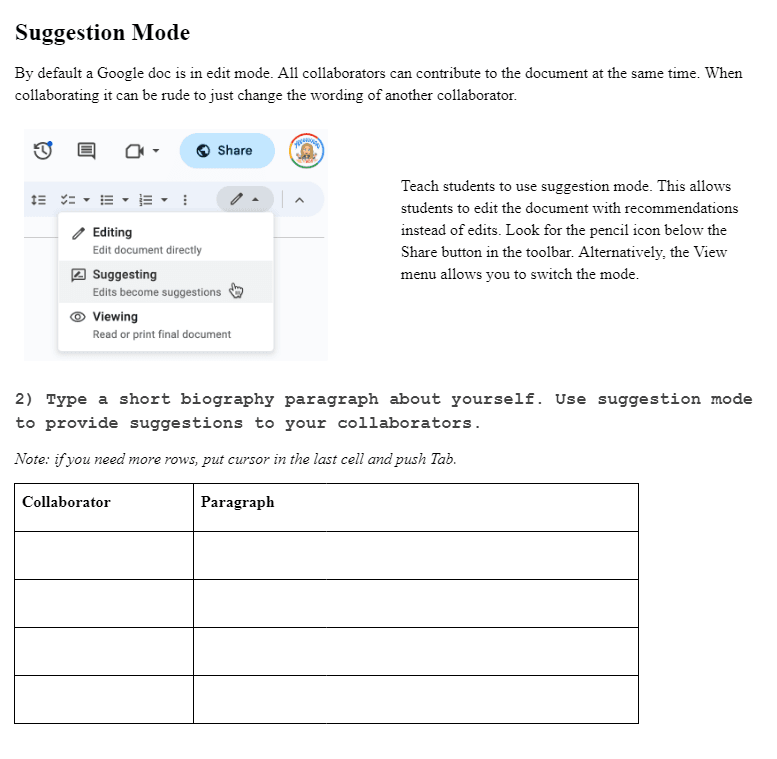
8️⃣Activity #8-Link to Comments 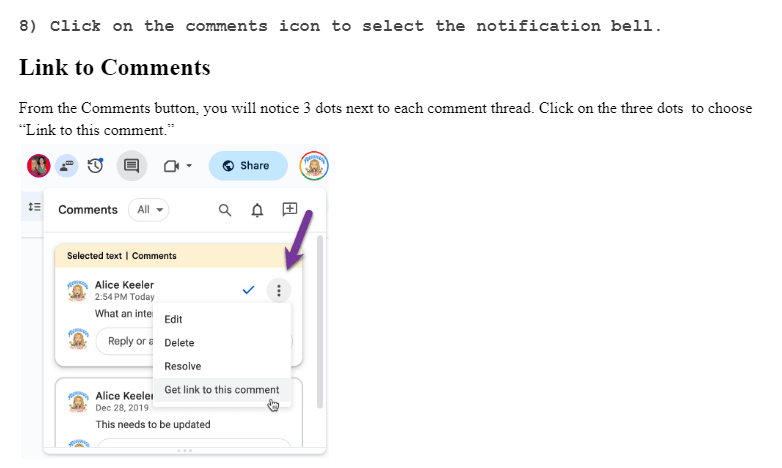
| 