Hi , 🏫School is back in session and I was talking with my friend about how high school students feel about returning to school. Sometimes as educators we can think everyone is 😩dreading the return to learning. Interestingly enough, she overhead several students talking saying how they 🌟"missed school" and were😀 "excited to be back". Keeping that in 🤯mind, what do you have planned to excite and engage students? Let's🧠 brainstorm. Join me or Marcia MENTORS for office hours. 🎟 The passcode is winteriscoming PLEASE SIGN IN! I respond ☀️ What Is Up This Week-
🖊️SIGN IN with the passcode winteriscoming
-
📅 Be added to the events calendar for the week. (do this every week!)
- 🔺 Premium Add-on: Close the Form by Alice Keeler
Close the Form Video Tutorial 4.💧 🆕Drip Workshop-One Lesson Per Week (online course) Go Slow for the Holidays #2 5..☑️Check alicekeelermembership.com with passcode winteriscoming for resources & events. 6.⏺️ Webinar Recording with Alice: Make It Self Grading 7.⏺️ Webinar Recording with Alice: Creating a Google Forms Branching Interactive Experience
8.✅ Check out: Mental Math Monday with Howie Hua 🌟Premium Events This Week✴️ One on One with Alice Keeler Office Hours with Marcia MENTORS: Tuesday Jan 16 4-4:30pm PST Join with Google Meet
 📧Emailing Groups of People-Use BCC 📧Emailing Groups of People-Use BCC
 📗I just received an email that was sent out to at least 50 recipients. The problem with is that when someone replies to all it goes out to all 50+ people and quickly my inbox is💣 blowing up with emails from people I do not know. 🔒Privacy📘Besides the excessive email that is generated by sending an email to a large group of people, the privacy of all the people in the list is compromised. Most likely the recipients do not know many of the people on the email list. The email lists all of the email addresses who the email was sent to. This allows others on the list to obtain email addresses of people who may not want their email address distributed. 👀BCC📕BCC stands for “Blind Carbon Copy.” Use BCC when sending out emails to groups of people who are not collaborating on the same project. If “reply to all” is not expected, use BCC instead of “To” or “CC.”
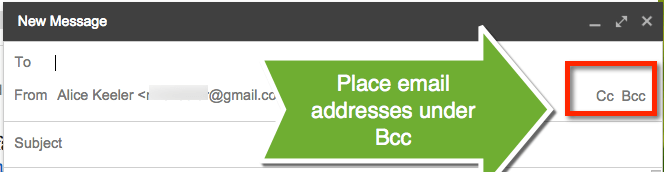 📙Placing email addresses under “BCC” instead of “To” hides the email addresses to the group of recipients. This also means they are not able to reply to all. Leave the “To” line blank. Click on “Bcc” in Gmail to expand out the options for senders.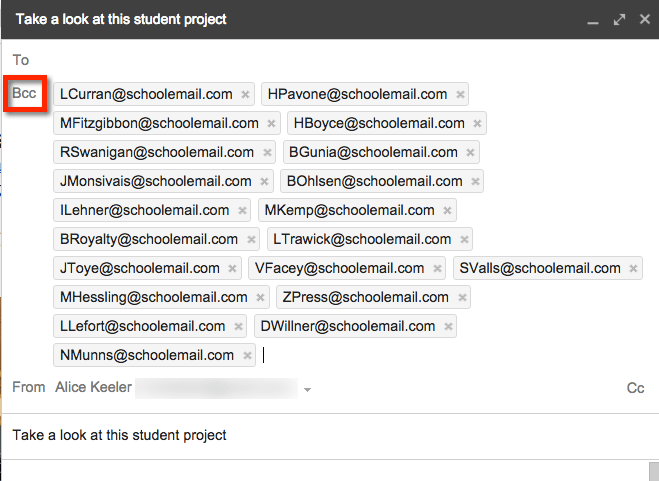
⛔Reply to All📓When an email is sent to a group, be careful about replying to all. Your email may default to “Reply to all” when responding. Unless the comment is really intended to further the conversation or is of the benefit of the whole group avoid replying to all. Comments such as “I agree” or “Thank you for sharing this” are not appropriate for a reply to all message.
 How to Use Quiz💡Helper for Google Forms How to Use Quiz💡Helper for Google Forms
🙂I can not count how many times someone has reached out to me to ask “How do I get student names on a Quiz my students took?” ⛔Unfortunately, if you forget to ask for student name you can not retroactively get it. 🔷I have coded the Add-on for Google Forms™ to help solve some of the pain points of using a Google Form for a classroom quiz. Sends Form feedback to Google Docs™ reports, allows students to finish their quiz later, sets defaults on the Form so you do not forget. 🎨Create a Google FormI like to use form.new to create a new Google Form. The problem with this is that it is not a quiz. You have to do an extra step to make it a quiz. 
🧩Use the Quiz helper Add-onUse the Puzzle Piece icon in Google Forms™ to select the “Quiz Helper by Alice Keeler” Add-on. Show the sidebar. 
📄Setup Form📒Get in the habit of using Quiz Helper to set up your Google Forms™. Give quizzes with confidence. You will never forget to ask for email and student name again. 
📚What is Defaulted in the Form?- Turns on Quiz.
- Collects email addresses automatically.
- Adds a First Name question, worth 0 points. Required.
- Adds a Last Name question, worth 0 points. Required.
- (Note: you will need to manually add a “What class are you in” question if you desire this.)
- Adds a section for the questions.
- Turns on question shuffling.
- Creates a Google Sheets spreadsheet for the responses if none exists
- (Note: refresh the quiz to see that the spreadsheet is indeed linked.)
- Disallows response editing (more on this later)
- Sets the confirmation message to be more meaningful. “Your quiz has been submitted to your teacher. Please move onto the next assignment.”
- Disables “Show link to submit another response.”
📙Give the QuizDistribute the Google Form to students to take the quiz. “Miss, I did not finish. Can I finish tomorrow?”
🔶How many times has this happened? A student arrives late to class and can not take the Google Form quiz in one sitting. A student just needs more time on the quiz. After reviewing the quiz, you want the student to go back and fix their mistakes. Unfortunately, there is no good way to allow students back into their Google Form. Until now. ✳️Quiz Helper captures the edit response link.
🔗🔗Automatically, when a student submits their Google Form the link to edit their response is captured. The setting to edit is DISABLED so even if the student had the link they would not be able to change their answers. The links are captured in the teacher’s Google Sheets spreadsheets on the “Links” tab of the responses. If you wanted to allow a student to go back and edit their quiz you would need to provide them the link. This is done manually. Copy and paste a student’s edit response link into an email, comment in Google Classroom, or any way you can share links digitally with a student. When the student clicks on the link they will NOT be allowed to edit their quiz. 🆗Allow Response EditingIn the Google Form go to the Settings tab, under Responses, select “Allow response editing” and toggle it on. 
⏲️Set a Timer for Response Editing⭐You may have a student come after school to finish their quiz and you want to make sure you only allow response editing for a small window of time. Use the button “Allow Submission Updates” in the sidebar of Quiz Helper by Alice Keeler. This will automatically ENABLE the response editing. After an hour, it will automatically disable the response editing. 
⏰Set a Timer for the FormAfter you have given the quiz you may want to ✖️disable students from taking the quiz after the window of time you provided. Go to the Responses tab of your Google Form and toggle off “Accepting responses.” However, if you are like me, you will forget to do this. In the sidebar of Quiz Helper by Alice Keeler, click on “Set Timer for Taking Quiz.” This will prompt you for how many HOURS (sorry, hours is the only option) until it automatically turns off accepting responses. 💬Give Students Feedback in the FormYou can give students feedback in Google Forms, but how do you get the feedback out of the Form? Quiz Helper by Alice Keeler solves this. 
💥In the sidebar of Quiz Helper by Alice Keeler, click on “Create Feedback Docs.” This will export all of the quiz responses to a new sheet in the Google Sheets responses along with the number of points the student earned and the feedback you gave them. A Google Doc per response will also be created and shared with the student. ✔️Each report lists their Name, Total Points Earned, Question Title, Student Response, Points Earned, and Teacher Feedback on the question.
Recent Blog Posts
- January 8, 2024: Can Schools Offer Work Life Balance?
- January 2, 2024: Official Pixel Art Add-on for Google Sheets
- December 30, 2023: Transforming Classrooms: Teaching with Google
- December 22, 2023: 10 Google Docs Add-ons for Teachers
- December 19, 2023: 10 Hidden FigJam Whiteboard Gems
- December 13, 2023: Multiple Forms to One Google Sheet
- December 13, 2023: Creating Random Google Forms Quiz Versions
- December 12, 2023: Bye Bye Jamboard
- December 9, 2023: 5 Easy Steps for Teaching with Digital Tools
- December 6, 2023: Help Your Students Prepare to Present
- December 3, 2023: How Teachers Can 🛳️ Cruise to Less Stress with Tech
- December 1, 2023: Infographic 7 Basic Steps for a Google Form
| 